Posts

Showing posts with the label XAML

UWP: How to fix losing focus when a grid or other non-focusable control is clicked

Ever noticed a situation where, in your UWP app, the user clicks an empty area in a page or other non-focusable control, and then all of a sudden the whole page loses focus, completely breaking any KeyDown or PreviewKeyDown events you've set up? Never remember this happening with WPF and Windows Forms?  That's because this is new behaviour with UWP - where, if you click on an empty space, focus will go all the way back to the root ScrollViewer which houses all your content - this ScrollViewer is provided by the platform and not something you can control. Luckily, this issue can be easily fixed by overriding the page's pointer event handling. This was reported here and fixed in WinUI 3, but not UWP. The fix To fix this, we can override the page's handling of pointer events, to stop the default behaviour where it passes focus on to the root ScrollViewer. Let's first add the event handler for the PointerPressed event and set a background (note that you can set the back...
WinUI app crashing when you scroll? Here's how to fix it

Years ago, Microsoft introduced this bug in WinUI 2, which can cause WinUI 2 apps to crash then you scroll to the bottom of a scrollable area in a ScrollViewer. You may have noticed this bug in built-in Microsoft apps such as the Microsoft Store, as they use WinUI. This bug was partially addressed in Windows 11, but can still occur.  Luckily, the bug only occurs with WinUI 2 and not plain UWP, so, to fix it, we can just use the UWP ScrollViewer style instead. To do this, just apply a blank style to all or just the offending ScrollViewers like so: <Style TargetType="ScrollViewer"/>  When you create your own style, it inherits from the UWP styles instead of the WinUI 2 styles, as explained here . You could apply it to an individual ScrollViewer like this: <ScrollViewer.Style> <Style TargetType="ScrollViewer"/> </ScrollViewer.Style> Or all of them in App.xaml like so: <Application.Resources> <controls:XamlControlsResources> ...

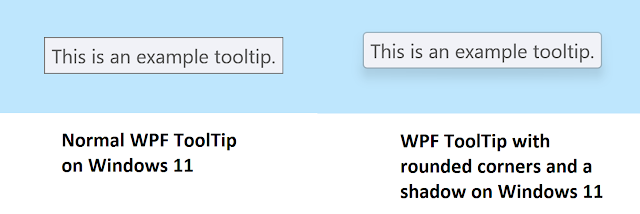
WPF: How to enable shadows and rounded corners on ToolTips in Windows 11

Image
Windows 11 originally came out in 2021, however, an official Windows 11 theme has not yet been released for WPF (more on that here ). Because of this, WPF apps still have more of a Windows 8/10 look. Luckily, there are some easy things you can do to modernise your WPF user interfaces . You could of course, create your own custom styles, however this can take quite a bit of work. This article covers something that can be done easily, without much work and without breaking compatibility with older operating systems. Enabling shadows and rounded corners on ToolTips WPF presents its ToolTips in seperate top level windows. This allows them to easily show on top of other content and not be limited to the size and position of its parent window. Windows 11 includes a built in feature as part of the DWM (Desktop Window Manager) that rounds top level windows. You can control this feature using the DwnSetWindowAttribute Windows function. Using this function, we can tell Windows 11 to have the DW...